Settings
The Settings workspace (/settings) is where Fluxomni Studio exposes server defaults, artifact ingest settings, media-profile references, self-service account information, and local user administration. Access it from Settings in the sidebar.
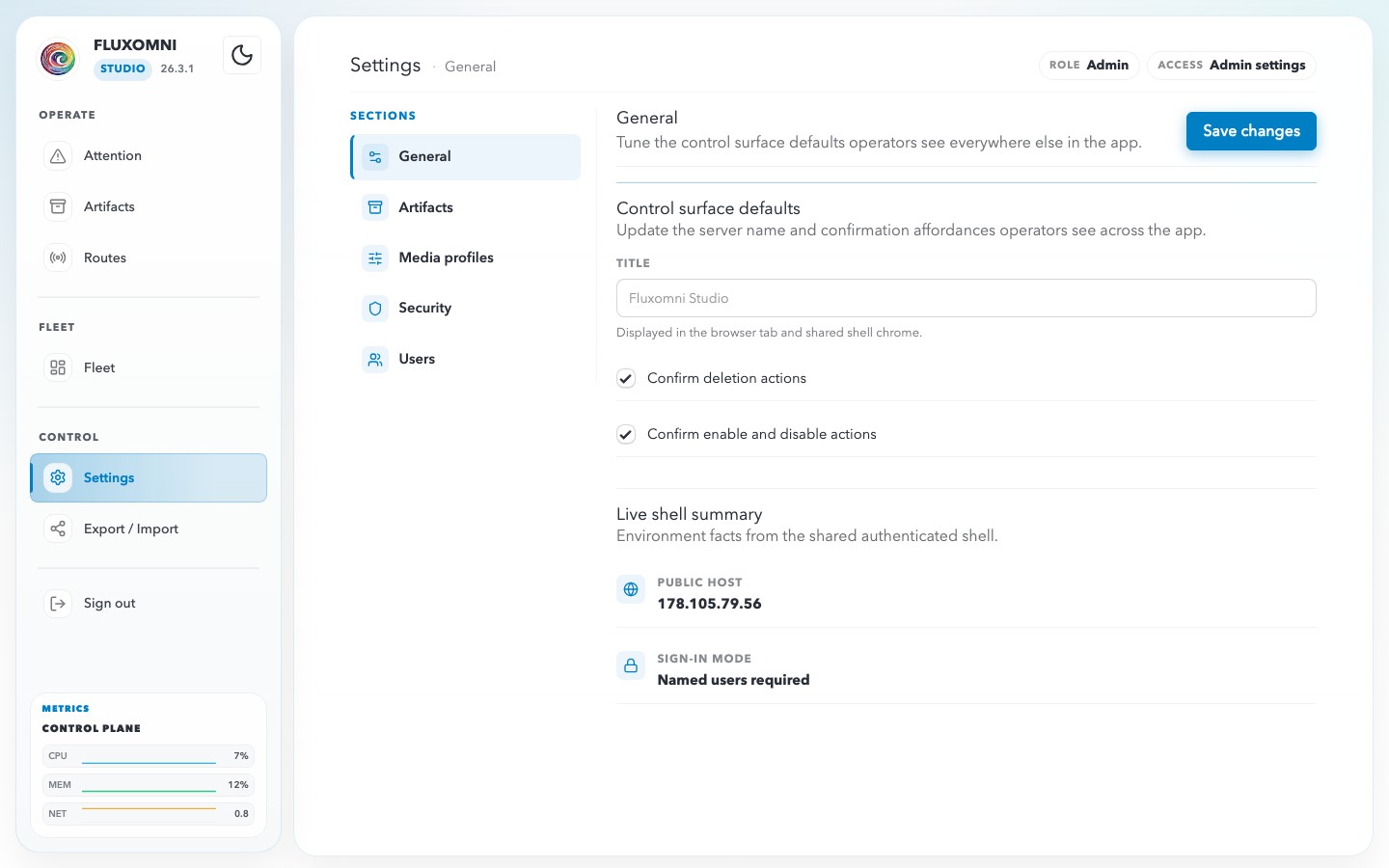
The page uses a split layout:
- a persistent section rail on the left
- a hero card at the top showing your current Role and Access level
- a large content panel for the selected section on the right
Admins can reach General, Artifacts, Media profiles, Security, and Users. Operators stay limited to the self-service General and Security sections.
General
The General section contains control-surface defaults plus a read-only shell summary. Admins can edit the shared defaults here; Operators see the same section as a self-service reference surface.
Control surface defaults
These settings affect the shared operator experience:
- Title — the server name shown in the browser tab and shared shell chrome.
- Confirm deletion actions — requires confirmation before destructive actions such as deleting routes, outputs, or files.
- Confirm enable and disable actions — adds confirmation before toggling inputs or outputs on or off.
Live shell summary
The lower summary cards mirror the current shell-level values visible to the operator:
- Public host
- Delete confirmation
- Enable confirmation
- Sign-in mode
Artifacts
The Artifacts settings section is admin-only and controls ingest defaults for the shared media library. Use the separate Artifacts page for day-to-day uploads, imports, tags, storage review, and playlist reuse.
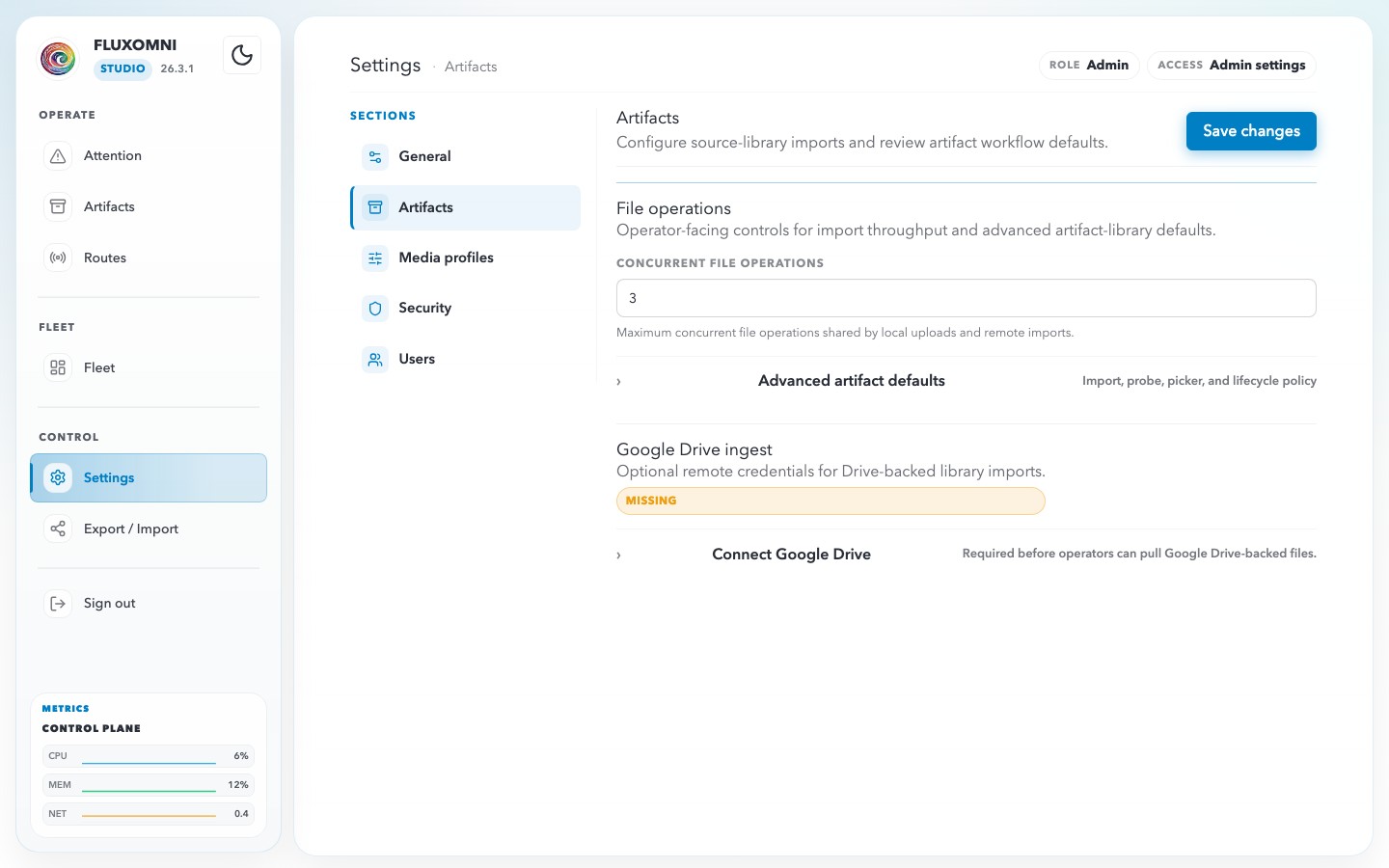
Google Drive
Google Drive settings control Drive imports into the artifact library and route playlist flows:
- Google API Key — required before operators can import shared Drive files or folders.
- Files Limit — maximum concurrent file operations for local uploads and remote imports.
Get an API key
Fluxomni Studio uses a Google Drive API key, not an OAuth user token. The key lets the control plane list and download files that are already shared with link access.
To create one:
- Open the official Google Workspace credential guide: Create access credentials.
- In Google Cloud Console, create or select a project.
- Open APIs & Services → Library, search for Google Drive API, and enable it for the project.
- Open APIs & Services → Credentials and choose Create credentials → API key.
- Copy the generated key into Settings → Artifacts → Google Drive → Google API Key in Fluxomni Studio.
- Recommended: restrict the key to the Google Drive API in Google Cloud Console. If your deployment has a stable public egress IP, also restrict usage to that IP.
Drive files and folders must be shared so the key can read them. Use link sharing such as Anyone with the link can view for the folders/files you import. Private files that require a signed-in Google account are not available through this API-key flow.
Artifact workflow defaults
The remaining cards are read-only reminders for the current artifact workflow:
- library uploads and Drive imports land in the shared artifact catalog
- route playlists and file-backup sources reuse the same library picker
- storage admission and rejections are visible from the Artifacts page and Attention feed
- media nodes cache artifacts as runtime state; the control plane remains the durable catalog authority
Media Profiles
The Media profiles settings section is admin-only and lists the baseline presets Fluxomni Studio uses when checking route playlist compatibility.
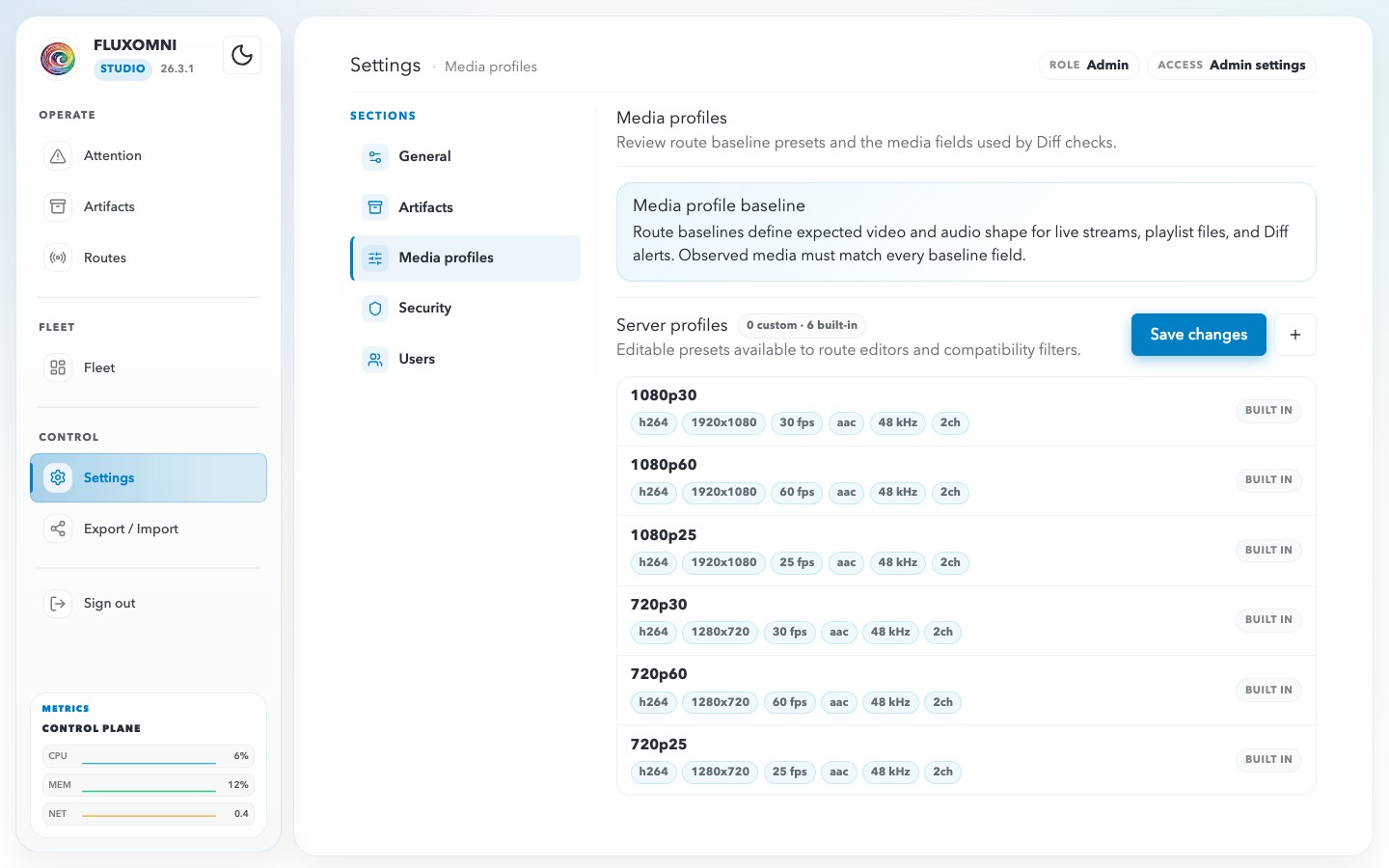
Profiles are reference presets, not encoder controls. They describe the video and audio shape a route expects before playlist files are allowed to start or stay healthy. The current presets cover common H.264/AAC stereo 48 kHz broadcast shapes:
1080p301080p601080p25720p30720p60720p25
Each row shows the comparable fields Fluxomni Studio checks:
- video codec
- width and height
- frame rate
- audio codec
- audio sample rate
- audio channel count
Use this section when a route, playlist item, or artifact row shows a Compatible, Incompatible, or Unknown baseline status. Route workspaces and artifact pickers surface the quick status; Settings → Media profiles explains the exact profile contract those checks are comparing against.
Security
The Security section is focused on the current browser session and its authentication posture.
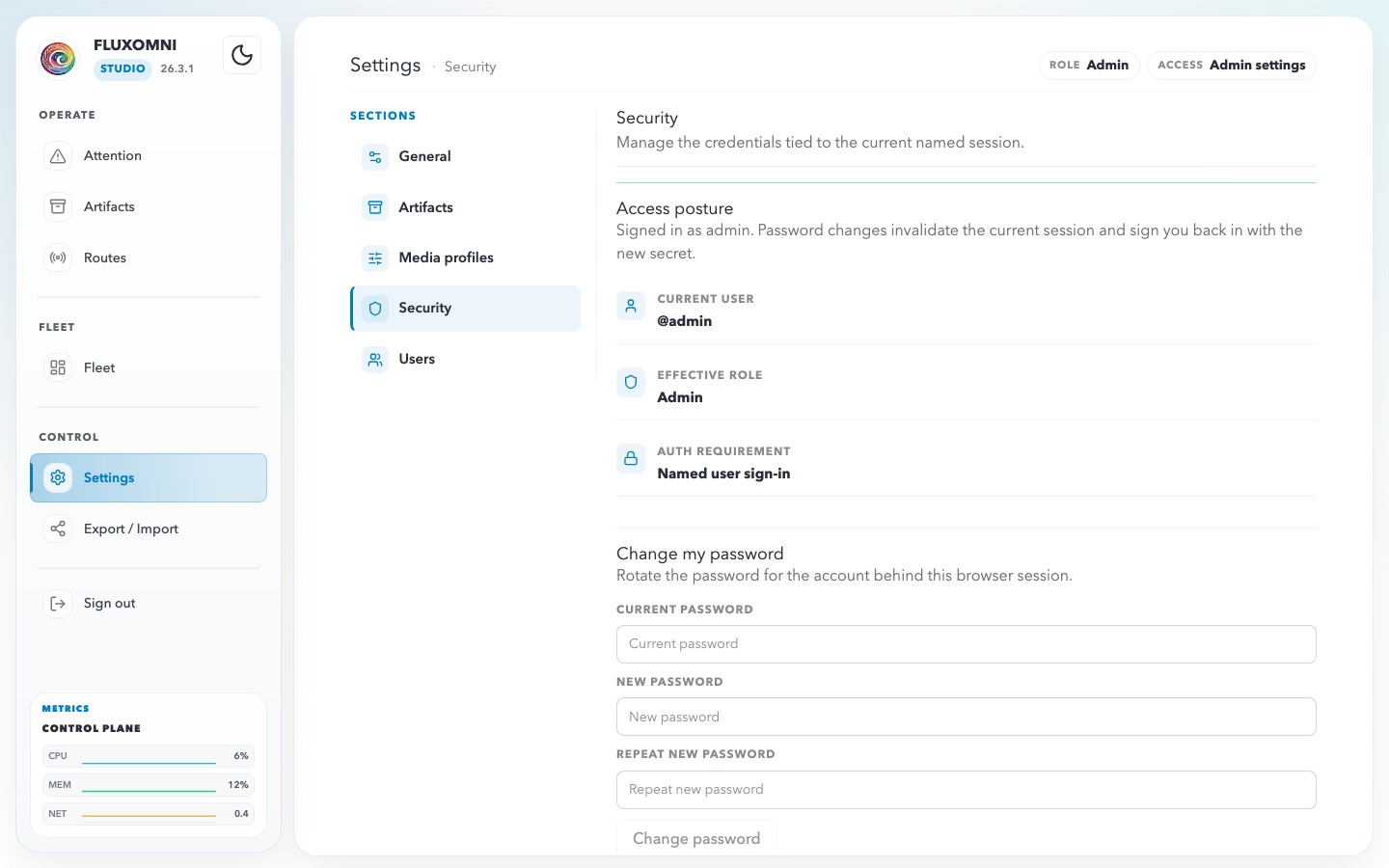
Access posture
The top card shows the current auth boundary for this session:
- Current user — the signed-in username, or the open admin shell when auth is disabled.
- Effective role — the resolved role for the current session.
- Auth requirement — whether the server is running in Named user sign-in mode or Open shell mode.
Change my password
When you are signed in as a named local user, use the password form to rotate that account’s password. Fluxomni Studio invalidates the current session and signs the browser back in with the new password once the change succeeds.
Sign-in screen
When named-user auth is required, unauthenticated browsers land on the sign-in screen shown below.
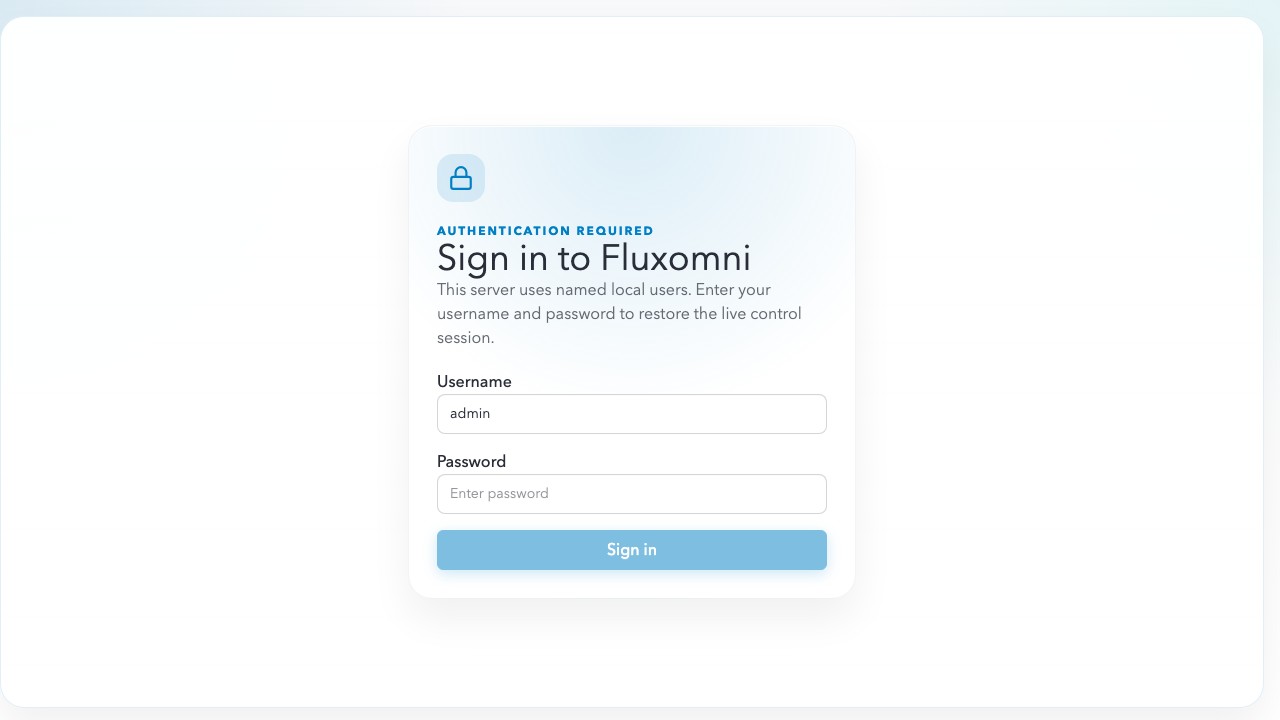
Creating the first persisted admin user is what flips a fresh open-shell install into named-user sign-in mode.
Users
The Users section is admin-only and manages local accounts plus route ownership.
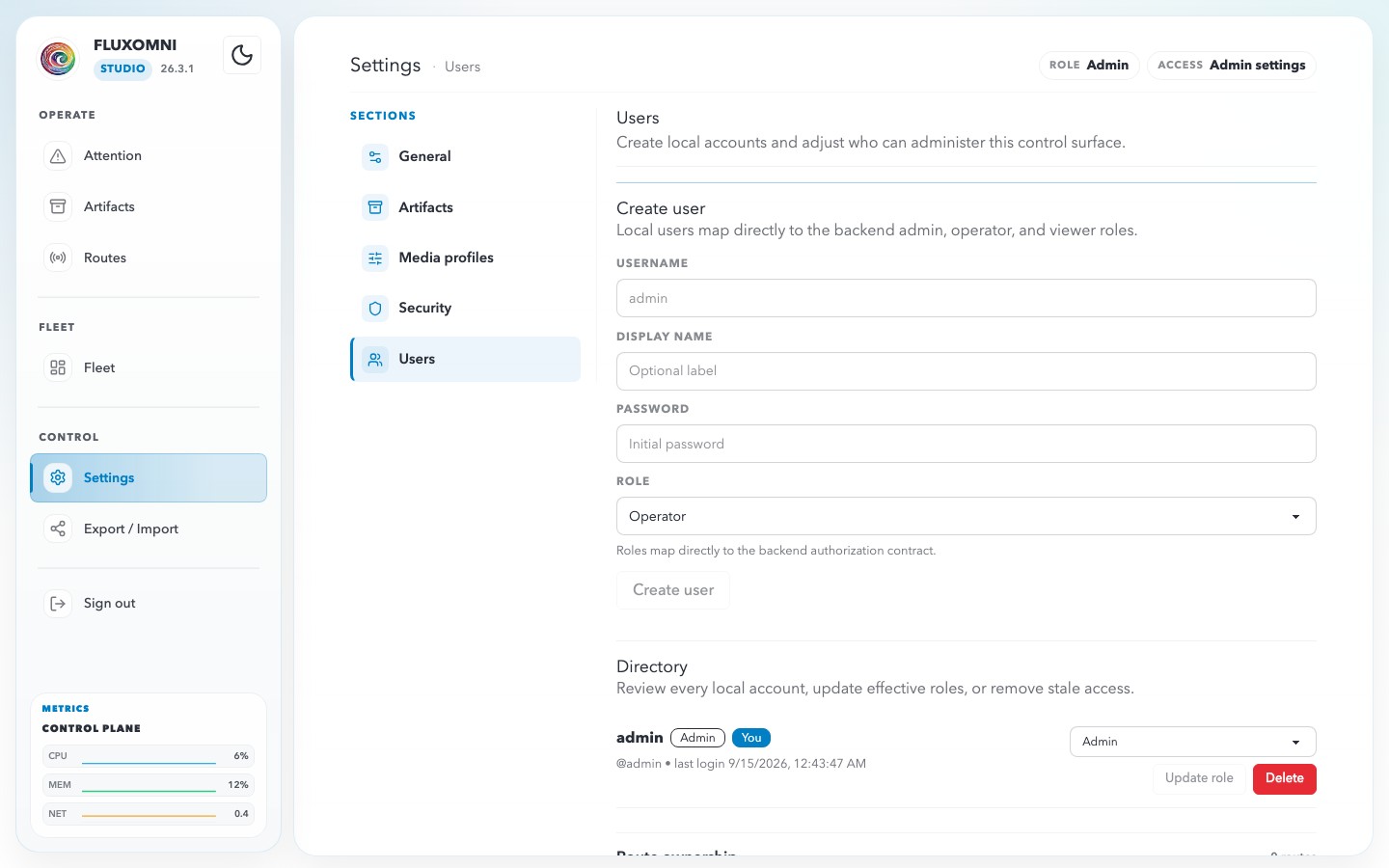
Create user
Use the creation card to add a local account:
- Username — login name for the operator
- Display Name — optional friendly label
- Password — initial password
- Role — Admin, Operator, or Viewer
On a brand-new open-shell install, the very first persisted user is always promoted to Admin and immediately becomes the account that enables named-user auth.
Directory
The Directory card lists all local accounts with their:
- display name or username
- role badge
- last login timestamp
- controls to Update role or Delete the user
Changing your own role or deleting your own account forces the shell to reload under the new auth boundary.
Route ownership
Fluxomni Studio routes can be either Shared or owned by a single named user.
- Shared routes remain visible to every signed-in user.
- Owned routes stay scoped to their assignee plus admins.
- Admins can assign or clear ownership from the route modal and from the route-ownership panels in Users.
- If a user is deleted, any routes they owned fall back to shared scope.
The Users page organizes this with per-user Route ownership panels plus a Shared routes section for reassigning unowned routes.
User roles
Fluxomni Studio has three built-in roles:
| Role | Access |
|---|---|
| Admin | Full access to routes, fleet, settings, user management, export/import, and ownership assignment. |
| Operator | Can create and manage routes, playlists, and outputs for routes they can see. Operators only get self-service Settings sections. |
| Viewer | Read-only access to visible routes and system surfaces. |
Export / Import
Use the Export / Import action in the sidebar to open the route-definition transfer modal. See Export & Import for export scope, preview, replace-mode, owner mapping, and safe-apply guidance.