Artifacts
Artifacts are reusable source files and generated media assets that Fluxomni Studio tracks in a shared library. Use this page to import files once, tag them, monitor storage capacity, and reuse them from route playlists or fallback sources.
Artifact Library
Open Artifacts in the sidebar to manage the global source library.
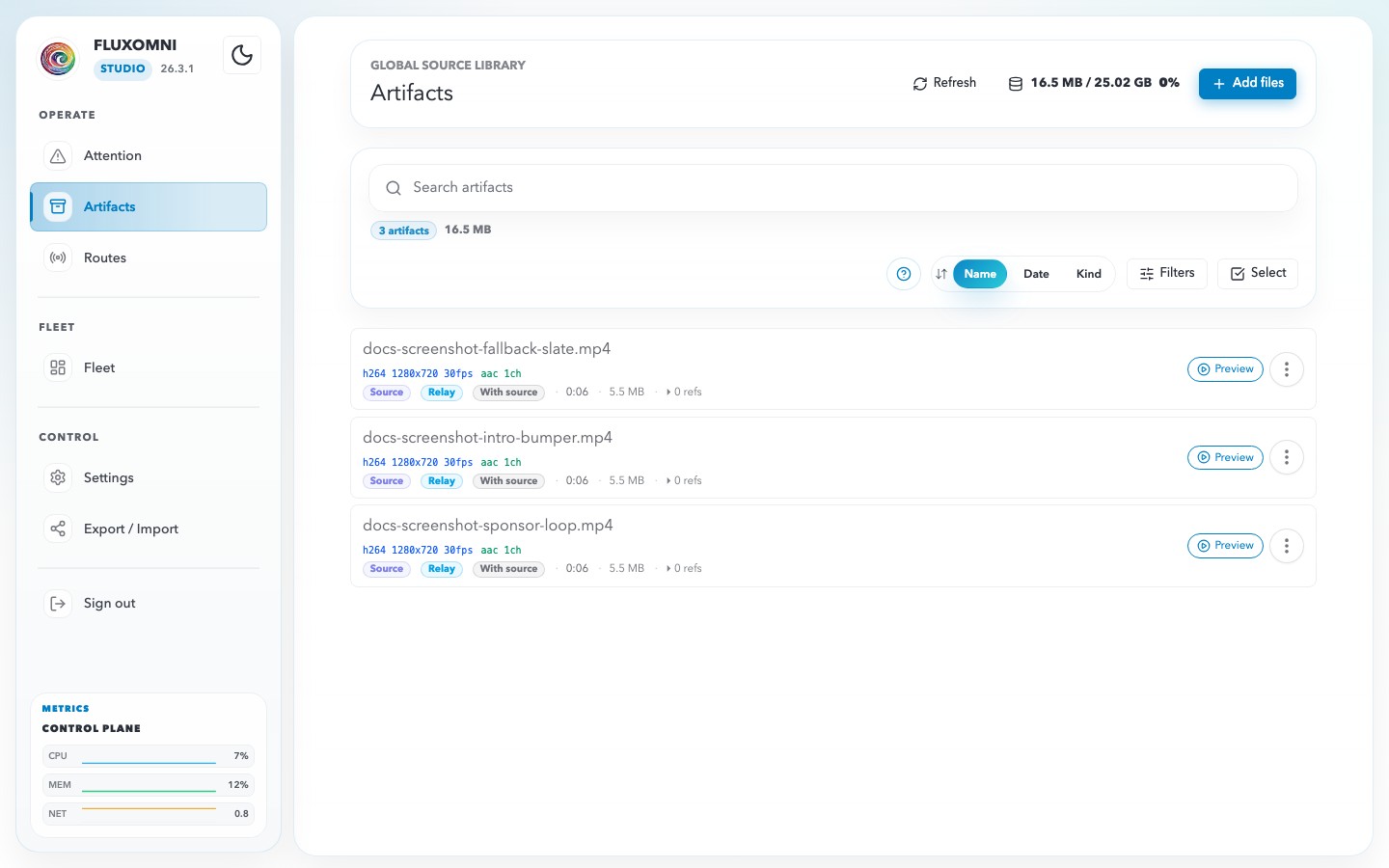
- Search finds files by name or file id.
- Tags group files by client, show, campaign, language, or day-part.
- Filters narrow the library by usage, artifact kind, location, lifecycle policy, or baseline compatibility.
- Sort switches between name, date, and artifact kind.
- Selection mode enables bulk tag and delete actions.
Rows show codec status, references from routes, tags, artifact kind, durable location, and lifecycle policy. Referenced files are protected from regular delete; admins can force-delete only when they intend to break those references.
Add Files
Use Add files to bring media into the library.
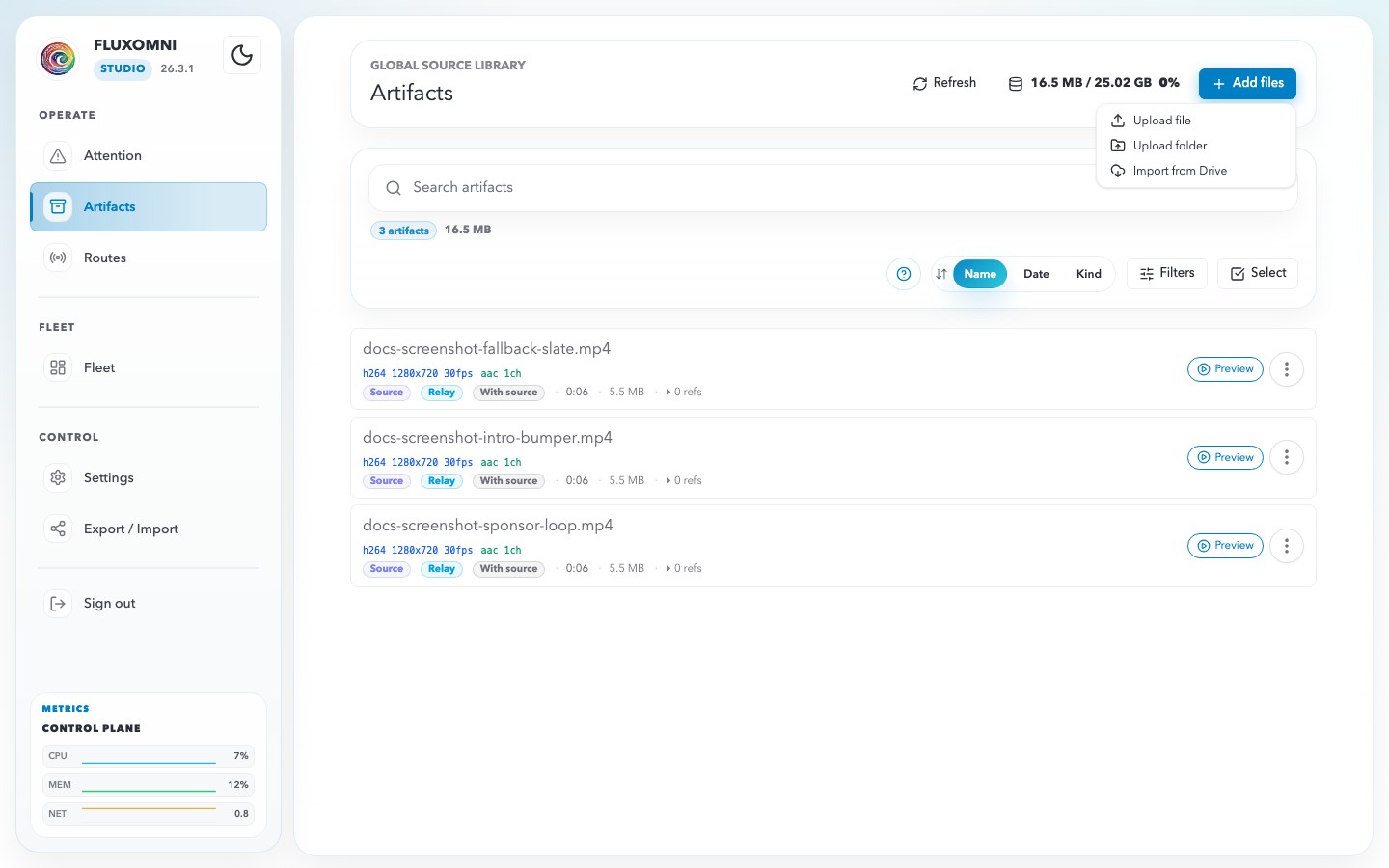
The menu supports:
- Upload file — choose one or more local video files.
- Upload folder — choose a folder; non-video sidecars are skipped.
- Import from Drive — enter a Google Drive file ID or URL. Folder imports are available from playlist flows.
Uploads and imports share the same transfer drawer. The drawer shows queued files, upload progress, skipped non-video files, and storage rejections.
Storage Backends
The storage chip in the header summarizes the control-plane relay backend used for direct uploads.
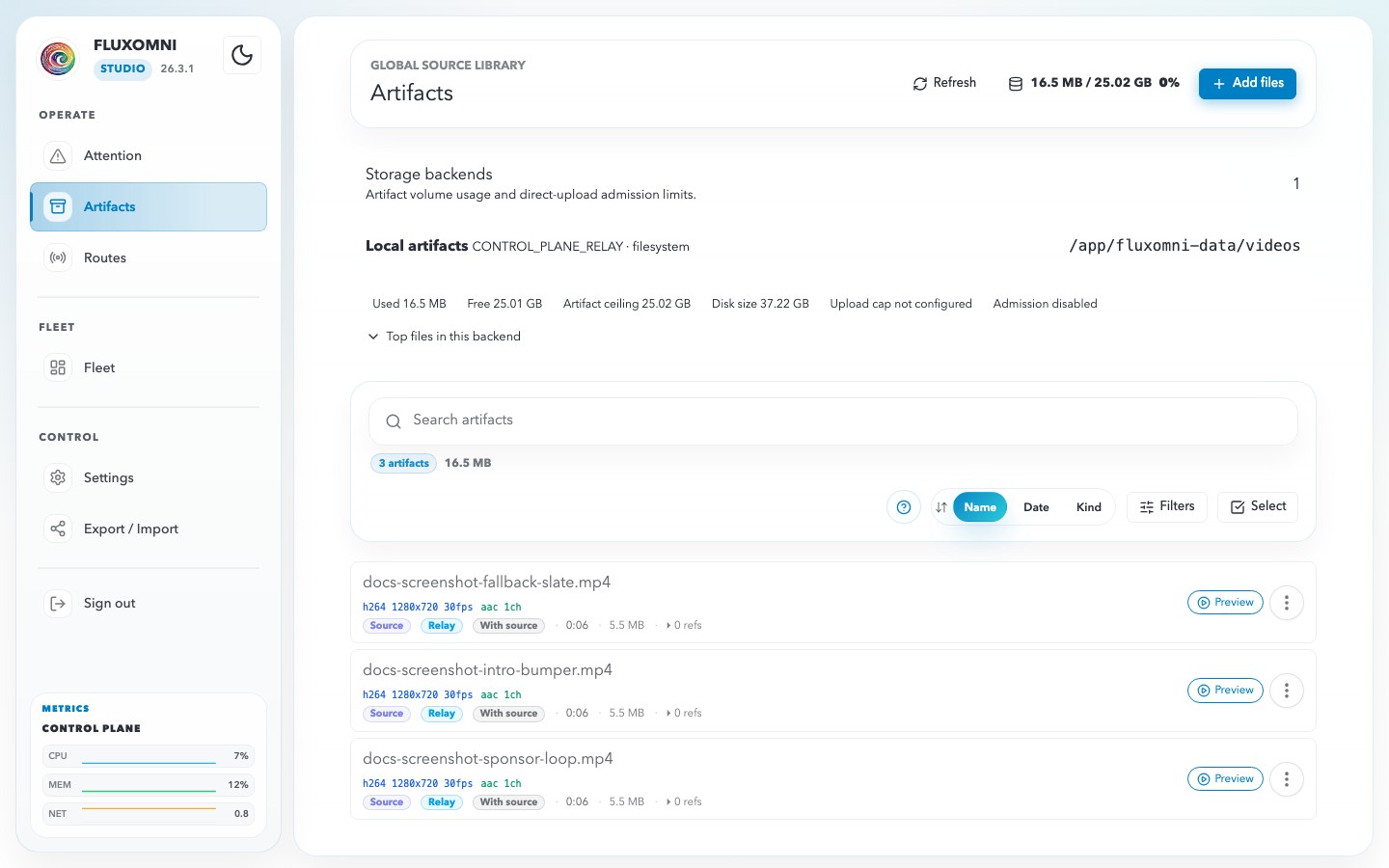
Expand the panel to inspect:
- Used and free artifact capacity.
- Raw disk size and configured headroom.
- Admission limit for new uploads.
- Outstanding reservations from in-flight transfers.
- Top artifact consumers.
- Recent storage rejection context.
Fluxomni Studio rejects uploads before they exceed the backend admission limit. The rejected upload also appears in Attention as a storage alert so operators can free space or move content before retrying.
Playlist Reuse
Route playlists use the same library picker. Open a route, switch to Playlist, then choose From library to add existing artifacts without uploading or importing the same file again.
The picker can filter by tags and route baseline compatibility. In multi-select mode it commits only visible, usable rows, so stale selections from prior filters are skipped instead of adding hidden files by accident.
Operational Tips
- Use short, stable tags such as
client-acme,intro,sponsor, or2026-season. - Check the storage panel before folder uploads or Drive imports.
- Keep file backup distinct from playlist programming: file backup is the safety loop; playlist is scheduled playout.
- Use Fleet when you need to confirm whether a media node has cached artifacts required by an assigned route.